USER GUIDE
Serving Times, start to finish.
Build the schedule once. Give everyone a clear view. This guide covers everything from your first sign-in to the staff page on your team’s phones.
No sections match. Try another word, or show sections for everyone.
Welcome to Serving Times
What Serving Times does and who does what.
Serving Times replaces the paper schedule. Managers build each week in one place, the app checks it for problems, upper management can approve it, and the team sees the published schedule on their phones by scanning the QR code on the printout.
What you can do
- Build the week on one screen, with quick-fill times, copy-last-week, and live checks for time off, availability, roles and double-booking.
- Keep time off in one place, whether it came by text, email, in person, or from the staff page.
- Get the week approved by upper management before it goes out, with notes on specific days.
- Publish and print a clean employee copy (AM/PM, no private notes) and a management copy (24-hour, with notes).
- Give staff their own page: they scan the QR code, enter a PIN, see their shifts, and request time off.
- Run more than one location from one account, and invite owners, managers and approvers.
Who does what
| Task | Owner | Manager | Approver | Staff |
|---|---|---|---|---|
| Build and edit the schedule | ✓ | ✓ | View only | – |
| Record and decide time off | ✓ | ✓ | – | Request only |
| Submit a week for approval | ✓ | ✓ | – | – |
| Approve or request changes | ✓ | – | ✓ | – |
| Publish and print | ✓ | ✓ | – | – |
| Set staff PINs, reset the staff link | ✓ | ✓ | – | – |
| Invite people, change roles | ✓ | – | – | – |
| Add locations, turn approval on or off | ✓ | – | – | – |
| See the published schedule | ✓ | ✓ | ✓ | ✓ (staff page) |
Quick start for owners
From sign-up to a printed schedule in about 20 minutes.
Go to servingtimes.com and choose Create an account. Confirm your email address from the message we send, then sign in.
The first time you sign in, name your restaurant and this location, then choose how to start.
Your first week, step by step
Building the week
The weekly schedule, shifts, quick fill, copying weeks, and the checks.
| Part of the screen | What it’s for |
|---|---|
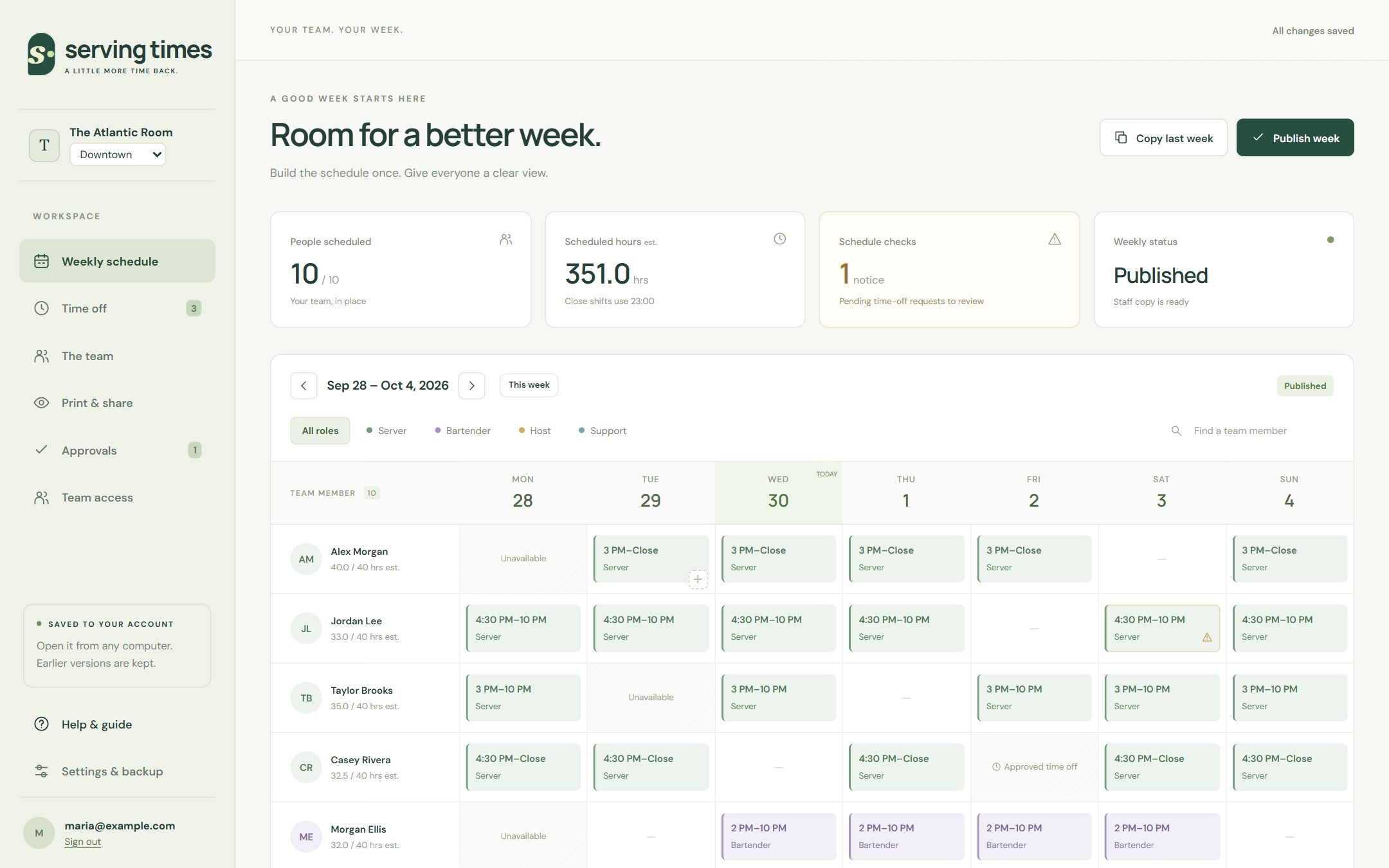
| Summary cards | People scheduled, estimated hours, how many checks need attention, and the week’s status (Draft, Waiting for approval, Published…). |
| Week bar | Move between weeks with the arrows, or jump back with This week. |
| Role chips and search | Show only one role’s shifts (someone who tends bar Monday and serves Tuesday appears under each role on the right days), or find a person by name. |
| The grid | One row per person. Each row shows their estimated hours against their weekly target. |
| Daily staffing | The last row: how many people of each role work each day, against your targets. |
| Before you publish | Below the grid: every problem the app found, with a link straight to the shift. |
Add a shift
- Hover over (or tap) an empty cell and select +.
- Check the team member, date and role.
- Set the start time, and either an end time or At close.
- Add manager notes if needed. Staff never see these.
- Select Save shift. It saves automatically; watch for All changes saved at the top right.
| Quick fill | Start | End |
|---|---|---|
| Dinner | 4:00 PM | 10:00 PM |
| Early | 11:00 AM | 5:00 PM |
| Closing | 5:00 PM | At close |
Copy last week
Most weeks look like the last one. Copy last week brings the previous week’s shifts into this week. Anything already scheduled for a person on a day stays as it is, and time off isn’t copied, so check the notices afterwards.
The checks
Serving Times checks the week as you build it. Shifts with a problem show a warning mark, and Before you publish lists them all.
| Check | Type | What to do |
|---|---|---|
| Scheduled on approved time off | Must fix | Move or remove the shift. |
| Scheduled on a recurring day off | Must fix | Move the shift, or update the person’s days off. |
| Role the person isn’t set up for | Must fix | Change the role, or add it to the person. |
| Overlapping shifts for one person | Must fix | Adjust the times or remove one shift. |
| Pending time-off request | Reminder | Decide the request in Time off. |
| Daily staffing target not met | Reminder | Add people, or accept it for that day. |
| Over weekly hours target | Reminder | Rebalance hours if needed. |
Staffing and hours at a glance
| Day | Server | Bartender | Host | Support | Total |
|---|---|---|---|---|---|
| Mon | 3 / 3 | 0 / 1 | 2 / 1 | 2 / 1 | 7 |
| Tue | 3 / 3 | 1 / 1 | 2 / 1 | 0 / 1 | 6 |
| Wed | 3 / 3 | 2 / 1 | 1 / 1 | 1 / 1 | 7 |
| Thu | 3 / 3 | 2 / 1 | 1 / 1 | 2 / 1 | 8 |
| Fri | 2 / 3 | 2 / 1 | 1 / 1 | 2 / 1 | 7 |
| Sat | 3 / 3 | 1 / 1 | 2 / 1 | 2 / 1 | 8 |
| Sun | 4 / 3 | 1 / 1 | 2 / 1 | 1 / 1 | 8 |
| Team member | Scheduled | Target | Status |
|---|---|---|---|
| Alex Morgan | 40.0 h | 40 h | Within target |
| Jamie Parker | 40.0 h | 40 h | Within target |
| Sam Bennett | 36.0 h | 40 h | Within target |
| Taylor Brooks | 35.0 h | 40 h | Within target |
| Riley Chen | 35.0 h | 40 h | Within target |
| Avery Quinn | 35.0 h | 40 h | Within target |
| Jordan Lee | 33.0 h | 40 h | Within target |
| Casey Rivera | 32.5 h | 40 h | Within target |
| Drew Hayes | 32.5 h | 40 h | Within target |
| Morgan Ellis | 32.0 h | 40 h | Within target |
Time off
Recording requests, requests from the staff page, and deciding them.
- Open Time off and select Add request.
- Choose the team member, the first and last day, and the type: PTO, Unpaid, or Unavailable.
- Note where it came from (text, email, in person, paper) and any private notes.
- Save it as Pending, or decide it straight away.
Requests staff send from the staff page appear here automatically as Pending, with the source Staff portal. Approve or decline them the same way.
| Status | Effect on the schedule |
|---|---|
| Pending | Shifts on those days show a reminder. Nothing is blocked. |
| Approved | Shifts on those days must be moved before publishing. The day shows Approved time off. |
| Declined | No effect. The employee sees Declined on the staff page. |
Your team
Team members, roles, days off, hours targets and staff PINs.
Select Add team member, or Edit on a card, to set:
- Qualified roles: the roles this person can be scheduled in.
- Recurring unavailable days: days they never work (the checks flag shifts on them).
- Weekly hours target: a planning reminder, not payroll or legal overtime.
- Staff page PIN: see The staff page.
Getting the week approved
Submitting a week, weekly statuses, notes, and turning approval on or off.
When a location requires approval, a week can only be published after an owner or approver approves it. Owners turn this on or off per location.
| Weekly status | What it means |
|---|---|
| Draft | Not submitted yet. |
| Waiting for approval | Submitted. Approvers have been emailed. |
| Changed since submitting | You edited the week after submitting. Submit again so the approver sees the latest. |
| Changes requested | The approver sent it back. Their reason and notes appear under the schedule. |
| Approved | Ready to publish. |
| Changed since approval | You edited it after it was approved. Submit it again. |
| Published | The staff copy is out and matches the schedule. |
| Changed since publishing | Only when approval is off: you edited a published week. Publish again to update staff. |
Submit a week
- Fix any Must fix problems.
- Select Submit or publish at the top of the schedule.
- Add a note for the approver if it helps, such as “Two new servers start Wednesday”.
- Select Submit for approval. Everyone who can approve gets an email.
Turn approval on or off (owners)
In Settings & backup → Locations, use Require approval before publishing. With approval off, Publish works directly.
For approvers
Reviewing a submitted week, adding notes, and deciding.
When a week is submitted you get an email. Review schedule opens it directly, or sign in and open Approvals. The number next to Approvals is how many weeks are waiting.
- Read the week. It’s exactly what the manager submitted.
- Add notes for the whole week or a specific day if something needs attention.
- Select Approve, or Request changes and say what to change.
- The manager is emailed either way.
Publishing, printing and sharing
Publishing the week and printing the employee and management copies.
Publishing saves a fixed copy of the week. The staff page shows it, and Print & share can print it. Later edits don’t change the published copy until you publish again.
| Employee view | Management view | |
|---|---|---|
| Times | AM/PM | 24-hour |
| Manager notes | Hidden | Shown |
| QR code for the staff page | Printed in the footer | Printed in the footer |
| Best for | The staff board | Managers and upper management |
- Schedule version: preview the current draft, or the last published copy.
- View by: Everyone, one Role (only that role’s shifts, for example the bar schedule; other-role days show “–”), or one Person (their whole week with the role on each shift and their total hours). The CSV download follows the same choice.
- Print / PDF: prints in landscape; choose “Save as PDF” to email it.
- Download CSV: opens in Excel or Google Sheets.
The staff page
Setting PINs, the staff link and QR code, and what staff can see.
Set up a PIN
- Open The team and select Edit on a person.
- Under Staff page PIN, keep the suggested 4 digits or type your own (4 to 6 digits).
- Select Set PIN, and tell the person their PIN yourself. It isn’t shown again.
Only people with a PIN appear on the staff page. Use Reset PIN if they forget it, and Remove PIN when someone leaves.
The link and QR code
The QR code is printed on every schedule from Print & share. You can also copy the link and text it to your team.
Security
| Situation | What happens |
|---|---|
| 5 wrong PINs in a row | That name is locked for 15 minutes. |
| 10 wrong PINs in total | Locked until a manager resets the PIN. The team card shows Locked, reset the PIN. |
| A PIN is reset or removed | Phones signed in with the old PIN are signed out. |
| The link is reset | Old printouts and every signed-in phone stop working. Print again for the new code. |
| Someone is removed from the team | They’re signed out and disappear from the staff page. |
| Staff can see | Staff never see |
|---|---|
| The published schedule for last, this and next week | Drafts, or anything not published |
| Their own shifts, highlighted | Manager notes |
| Their own time-off requests and status | Anyone else’s time off or reasons |
| Names of people with a PIN | Hours targets, settings, email addresses |
For staff: your schedule on your phone
A one-page guide to hand to your team.
Your manager gives you a PIN. You don’t need an account or an email address.
- Your phone stays signed in for 30 days. Tap Not you? on a shared phone.
- Requests show Pending until your manager decides, then Approved or Declined.
- Requests can start from today up to a year ahead, and cover up to 60 days.
- Forgot your PIN, or it says locked? Ask your manager to reset it.
Team access and locations
Inviting managers and approvers, roles, and running more than one location.
- Open Team access.
- Enter the person’s email address and choose Owner, Manager or Approver.
- Select Send invitation. The link works for 14 days.
- They open the email, choose a password (or sign in if they already have an account), and they’re in.
- Change someone’s role with the menu next to their name, or remove their access.
- An organization always keeps at least one owner.
- You can send up to 20 invitations a day, and one per address every 10 minutes.
More than one location
Owners add locations in Settings & backup → Locations. Each location has its own schedule, team list, staff page link, and approval setting. Switch between them with the menu under your restaurant’s name in the sidebar.
The manager schedule
One week for every location’s managers, with forecasts, banquets and tasks.
The Manager schedule (in the sidebar) is the group’s week for managers: who runs each location every day, the forecast, banquets and events, and each manager’s tasks. It replaces the one big spreadsheet with one block per location.
Setting it up (owners)
- Open Manager schedule and select Set up the manager schedule. It starts with common shift types (OM, No OM, Acct, Duties, Captain, On call, Off, Request, Vacation, Personal day, Closed) and tasks (Payroll, CGS inventory, Bev orders and more).
- In Setup, add each manager with their home location. Days owed and comp days show on their week.
- Adjust shift types: the short code shown in cells, the floor role, usual times, and whether it counts as a working day (Off, Vacation and Closed don’t).
- In the task library, set a task to repeat on certain days (and, if you like, only on certain shift types). Repeating tasks attach themselves when you pick a matching shift or copy last week.
Home locations: who edits what
In Team access, owners give each person with the Manager role a home location. A manager (GM) edits only their home location’s block and can read every other location.
| Owner | Manager (GM) | Approver | |
|---|---|---|---|
| Set up managers, shift types, tasks | Yes | – | – |
| Edit their home location’s block | Yes | Yes | – |
| Edit other locations’ blocks | Yes | – | – |
| See the whole group | Yes | Yes | Yes |
Filling in a location’s week
- On the Location tab, pick the location. Click a manager’s day to choose a shift, tick tasks from the library or type others, and add a note.
- Click a Forecast cell to enter covers, an event (“Pirates v Dodgers 6:40”), banquets (one per line), chef expo, orientation, or mark the day Closed.
- Borrow a manager gives someone from another location a row on this week.
- Copy last week fills empty days with last week’s shifts. Repeating tasks attach themselves; one-off tasks and notes stay with the week they were written for.
Seeing the whole group
- Group week, by location: each location’s OM, covers and banquet count for every day. Click a location to open its block.
- Group week, by manager: every manager’s week, colored by location, so travel between locations is easy to spot.
- Manager’s week: one person across all locations, with their tasks, notes, and days owed and comp days.
Importing the group’s spreadsheet (owners)
- Open Manager schedule → Import and choose the Excel manager schedule (.xlsx).
- For a demo, keep Replace people’s names with made-up ones ticked. The made-up names keep the same initials, so notes like “w/ER” still read right. Names are replaced on this computer before anything is saved. Open Other capitalized words we kept and tick any that are names we missed.
- Read What we found (below), and choose what any shifts we didn’t recognize are. Your answers are remembered for next time.
- Pick the week and select Import. Locations in the file that you don’t have yet are added, and each location in the file gets that week replaced.
| What the import catches | What happens |
|---|---|
| Rows that slipped: names one row above their schedules | Read with each name’s schedule from the row below, until the rows line up again. |
| A week of shifts with no name | Reported, not imported. |
| Text filled down the name column below the schedule | Skipped (deleting it makes the file much smaller). |
| Chef expo names typed in the Orientation row | Imported as chef expo. |
| A file or tab name that doesn’t match the dates | Reported. |
| The same manager with different weeks at two locations | Both imported; the checks show the clashes. |
| Two managers whose weeks match day for day | Reported as a possible copy and paste. |
| Notes typed in a name cell (“we owe 2 comps”) | Moved to the manager’s notes and balances. |
Checks
The group week shows ⚠ on any day with something to fix, and a Checks list underneath. Each location’s block lists its own checks. Fix problems before submitting a week; reminders are worth a look.
| Check | Type |
|---|---|
| A manager working at two locations on the same day | Fix |
| A manager working on a Request, Vacation or Personal day | Fix |
| An open location with no OM (Closed days are skipped) | Fix |
| Fewer days off than the rule in Setup | Reminder |
| Working all 7 days | Reminder |
| No one on call (when that rule is on) | Reminder |
| A repeating task with no matching shift | Reminder |
| Days owed or comp days outstanding | Reminder |
Getting a location’s week approved
- The location’s manager (GM) fills in the week and selects Submit for approval, with an optional note. Anything marked Fix in the checks has to be fixed first.
- The owner or approver opens it (the email links straight to the manager schedule) and selects Approve, or Request changes with a note saying what to change.
- Once approved, select Publish to managers’ phones.
The manager page
Owners set each manager’s PIN in Setup → Managers. The Manager page link and QR code are in Setup too. Managers open it on their phones, pick their name, enter their PIN, and see this week and next (published weeks only) across every location they work, then tap tasks to tick them off.
Tasks
The Tasks tab shows each task’s done/total for every day of the published week, and how much is done at each location.
Printing and Excel
The Print & export tab prints the week on screen: the group on one page, every location (a page each) or one location, one manager’s week with their tasks and balances, or task checklists with boxes to tick and initial. Download Excel saves the week in the group’s own spreadsheet layout, a block per location, and the Import tab reads that file straight back.
Showing it to the group
To show the manager schedule to your group, import a real week with Replace people’s names with made-up ones ticked, into a separate group if you like. Open Group week, then the must-fix list (a manager booked at two locations, a day with no OM). Fix one day and watch the warning clear. Submit two locations, Approve all submitted, Publish all approved, then scan the manager page QR code on a phone, sign in with a PIN set in Setup, and tick a task. Finish in Print & export.
Plan, billing and your data
The free trial, subscribing, what read-only means, and deleting things.
Each person gets one 30-day free trial, on the first organization they create. No card is needed to start. Settings → Plan & billing shows how many days are left and what your locations will cost.
| Locations | Each, per month |
|---|---|
| 1st to 3rd | $49 |
| 4th to 10th | $39 |
| 11th and on | $29 |
Press Subscribe to pay by card through Stripe. Subscribe before the trial’s last two days and the first charge waits until the trial ends. Adding or deleting a location changes the next bill. Manage billing opens Stripe, where you update your card, see invoices or cancel (you keep everything until the end of the period you paid for).
Read-only
If the trial ends without a subscription, or a subscription ends, the organization becomes read-only: everyone can still see, print and download every schedule, and staff can still send time-off requests, but editing, publishing and approvals pause until an owner subscribes. Nothing is deleted.
Deleting
In Settings, owners can delete a location or the whole organization (type its name to confirm). Anyone can delete their own account; organizations where you’re the only owner are deleted with it, and you’ll see them listed first. Deleting ends any subscription, so nothing is billed again.
Settings, backups and history
Restaurant settings, roles, backups, and your account.
| Setting | Where | Notes |
|---|---|---|
| Name on printed schedules | Restaurant settings | Printed at the top of every schedule for this location. |
| Closing time for “At close” | Restaurant settings | Used for hour estimates and checks only. |
| Daily staffing targets | Restaurant settings | People per role per day. |
| Roles | Roles | Add or rename roles. |
| Locations and approval | Locations (owners) | See Getting the week approved. |
| Staff page link | Staff page | Copy the link or reset it. |
| Password | Your account | Change password, or sign out. |
Your work is saved as you go
Every change saves automatically; the top right says All changes saved. Earlier versions are kept, so a mistake can be undone; contact support to restore one. You can also Download backup at any time and Restore backup from a file. A downloaded backup covers the last 8 weeks onward; older weeks stay saved in your account.
Old weeks
You can schedule as far ahead as you like, and every past week is kept. Weeks older than 8 weeks are moved to the archive automatically so the schedule stays fast: they show with an Archived week banner, read-only, and still print from Print & share. Copy last week works from an archived week too. New shifts can’t be dated into an archived week.
Tips and a weekly routine
A rhythm that keeps the schedule a week ahead, and habits that save time.
- Build one week ahead, and publish before the weekend.
- Start from Copy last week, then adjust. Most weeks change less than you think.
- Keep recurring days off and roles up to date. The checks are only as good as the team details.
- Record time off the moment you hear about it, even as Pending.
- Use manager notes for private reminders. Staff never see them, and they don’t need re-approval.
- Print the employee copy for the board. The QR code saves you answering “when do I work?”.
- Reset a person’s PIN rather than sharing PINs between people.
Troubleshooting and FAQ
Common questions and quick fixes.
Publish is greyed out.
A Must fix problem is listed under Before you publish, or the week needs approval first. Fix the problem or submit the week.
It says “Not saved: changed elsewhere”.
The schedule was changed in another window or on another computer. Choose Load the latest (download your version first if you need it).
It says “Can’t reach the server. Retrying…”.
Your connection dropped. Keep the page open; it saves as soon as you’re back online.
A staff member can’t find their name on the staff page.
They don’t have a PIN yet. Set one in The team.
A staff member is locked out.
Reset their PIN in The team. That unlocks them right away.
The QR code stopped working.
The link was reset. Print the schedule again for the new code.
Staff can’t see next week.
It isn’t published yet. The staff page only shows published weeks.
I didn’t get the invitation email.
Check spam, or ask the owner to send it again from Team access (after 10 minutes).
I forgot my password.
Use Forgot password? on the sign-in screen.
Do the hours match payroll?
No. Hours are planning estimates; they don’t include breaks, overtime rules, or pay.
Glossary
The words used in Serving Times.
| Term | Meaning |
|---|---|
| Organization | Your restaurant or group. Owners, managers and approvers belong to it. |
| Location | One restaurant. It has its own schedule, team, staff page, and approval setting. |
| Owner | Can do everything, including team access, locations, and approval settings. |
| Manager | Builds and publishes schedules, and handles time off and staff PINs. |
| Approver | Reviews submitted weeks, adds notes, and approves or requests changes. |
| Draft | The schedule as you’re building it. Staff can’t see drafts. |
| Publish | Save a fixed copy of the week for staff and for printing. |
| Staff page | The page staff reach from the QR code, signed in with a PIN. |
| At close | A shift that ends when service ends. Hours use the closing time from Settings. |
| (+1) | The shift ends the next day. |